
Benchmarking P6 (Primavera v6)
Primavera v6, also known as P6, is a suite of project management and scheduling software used by professionals in the construction industry. Primavera is developed by Oracle and has several pitfalls which leads to less than idea performance depending on the circumstances. As infrastructure ages upgrades can be a great time to advocate for and implement changes that improve the user experience. However, without the proper data it can be hard to accurately scope such an upgrade.
To help develop an infrastructure upgrade strategy I analyzed and tested P6 and it’s various components to help narrow down where the most gains were to be had. At the heart of this analysis is a XER import benchmarking script which I used extensively to create a repeatable test to both get a baseline and compare against the impacts of configuration changes. (Side note: A XER file is a data file used by P6 to hold and transfer scheduling & resource data).
Conclusions first
- Primavera/P6 is a very CPU clock speed dependent application.
- The higher the clock, the better it will perform.
- P6 seems to be a primarily single threaded application. Focus updates on single core performance.
- Multicore architecture does help, especially in shared resource environments such as VDI & Terminal services.
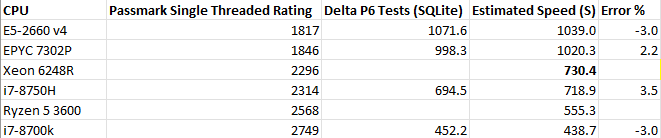
- Relative P6 performance can be measured using this formula to map a CPU’s Passmark Single Threaded Rating to P6 performance in seconds. I used this to estimate XER import speeds on processors which I don’t have access to test with.
- y = -0.6441x + 2209.3
- x = Passmark Single Threaded Rating
- y = Estimated P6 performance (using my XER test set- see below for details).
- Error %: +/- 3.0%
- y = -0.6441x + 2209.3
- Improving the performance of both the SQL backend & P6 front end systems will have a positive impact on P6 XER import times.
- Decrease in P6 Import Times by Speeding Up Frontend: 13.8% - 16.2% on Average
- Decrease in P6 Import Times by Speeding Up Backend: 5.4% - 8% on Average
- Ensuring network link speed is greater than 100 mbps is optimal for best results.
- Speeds faster than 100 mbps produce diminishing results. Fastest tested was 1 gbps.
- Speeds slower than 100 mbps produce very poor results. Would not recommend.
Benchmarking Script
I created this script in Powershell, it simply imports multiple XER files and times how long it takes for P6 to import all designated XER files into a database. The only thing I’m not including is the XERs which I used to benchmark with. You will need to supply your own set of XERs which matches the type of data your organization is using. Save the below code as a .ps1 file and execute, to use it follow these instructions:
- On line 11, update the $P6Path with the path where PM.exe is located.
- Ensure you have a P6 database created. You need the following information:
- Database Alias. The database connection needs to be added to your P6 client/launcher.
- Username & Password set. Credentials used to access the P6 DB directly, not the SQL SA account.
- XERPath. The path to the folder which you have the test XERs stored.
- EPS ID. You need the name of the EPS to which you will be importing the XERs into.
- Import Configuration name. P6 has import configurations which tells the application how to import XERs. You need to have the name of the import configuration you want P6 to use during the XER import process. If you don’t know your Import configuration name do a test import of a XER through the P6 gui and one of the import options screens has you selecting an import config.
If you run into errors, check the PrimaveraCmdLineLog.txt logfile. This should be located in the P6 path. Here are the common P6 import error codes:
- Exit Code 0: Success.
- Exit Code 1: The database name you entered isn’t valid. Check the spelling.
- Exit Code 2: Invalid username or password. This can also occur if the account already has an open connection with a database.
- Exit Code 6: Either the EPS ID or import configuration you entered isn’t valid.
Clear-Host
Read-Host "P6 XER Benchmarking tool made by Marcus.`nBefore continuing please save & close any open P6 windows. (Continuing will force close all P6 sessions). `nPress Enter to continue..."
Clear-Host

#Close open P6 Windows.
Stop-Process -Name Primavera.CacheService -ErrorAction SilentlyContinue
Stop-Process -Name PM -ErrorAction SilentlyContinue

#Prompt the user for information about the XER Import & save to variables.
$failedState = $false
$P6Path = "C:\Program Files\Oracle\Primavera P6\P6 Professional\"
$XERCount = 0
$DBName = Read-Host("Enter the database alias/name. Tip: Right click the mouse to paste into the terminal.")
$Username = Read-Host("Enter your username that you connect to the database with")
$Password = Read-Host("Enter your password.")
$XERPath = Read-Host("Enter the full PATH to the folder where the XERs you wish to import are. Tip: Right click the mouse to paste into the terminal.")
$EPSElement = Read-Host("Enter the EPS ID you wish to add the project to. (Example: EPS)")
$ImportConfig = Read-Host("Enter the Import Configuration you wish to use. (Example: default)")
$XERArray = @()
$ResultArray = @()

#Get an array of all XERs in the folder path provided
$XERArray += Get-ChildItem -Path "$XERPath\*.xer" -Name
$XERArrayLength = $XERArray.Length
Clear-Host

#Prompt user for confirmation that they want to execute using the information given.
Write-Host("Script found $XERArrayLength XER files in $XERPath.")
Write-Host("ArrayDEBUG: $XERArray")
$Response = Read-Host("Script will import those XER files to $DBName\$EPSElement using the $ImportConfig import configuration. OK to continue? (Enter `"y`" to continue or `"n`" to cancel.)")
if($XERArrayLength -eq 0){
    $Response = "n"
    Write-Host("WARNING, NO XERs FOUND AT THIS LOCATION.") -ForegroundColor Red
}
if(($Response -eq 'y') -or ($Response -eq 'Y') -or ($Response -eq 'yes') -or ($Response -eq 'Yes') -or ($Response -eq 'ok') -or ($Response -eq 'OK') -and ($XERArrayLength -gt 0)){

    #For each XER in the XER array we create an XML. The XML is used during the command line call of the P6 executible.
    #The XML tells P6 what to do, in this case we're doing an import action.
    #Each part of the XML is filled with the information provided above.
    #Once the XER is imported, I delete the XML used and move onto the next XER in the array.

        Write-Host("Starting process, please wait. Advanced output should be here: $P6Path\PrimaveraCmdLineLog.txt")
        foreach ($XERName in $XERArray){
            $XERCount = $XERCount + 1 #Increment counter for progress updates.
            $failedState = $false

            #Set XML Settings
            $xmlsettings = New-Object System.Xml.XmlWriterSettings
            $xmlsettings.Indent = $true
            $xmlsettings.IndentChars = "    "

            # Set the file name w/Date
            $timestamp = Get-Date -Format o | ForEach-Object { $_ -replace ":", "." }
            #$XMLName = "ActionsXML$timestamp.xml"
            $XMLName = "ActionsXML.xml"
            $XmlWriter = [System.XML.XmlWriter]::Create("$XERPath\$XMLName", $xmlsettings)

            # Write the XML Decleration and set the XSL
            $xmlWriter.WriteStartDocument()

            # Start the Root Element & fill in all the elements with information provided by the user
            $xmlWriter.WriteStartElement("actions")

            $xmlWriter.WriteStartElement("action")
            $xmlWriter.WriteElementString("type","import")
            $xmlWriter.WriteElementString("importFormat","XER")
            $xmlWriter.WriteElementString("importType","PROJECT")
            $xmlWriter.WriteElementString("importAction","CREATE")
            $xmlWriter.WriteElementString("importTo","$EPSElement")
            $xmlWriter.WriteElementString("importConfiguration","$ImportConfig")
            $xmlWriter.WriteElementString("importFile","$XERPath\$XERName")
            $xmlWriter.WriteEndElement() # <-- End <action>
            $xmlWriter.WriteEndElement() # <-- End <actions>

            # End, Finalize and close the XML Document
            $xmlWriter.WriteEndDocument()
            $xmlWriter.Flush()
            $xmlWriter.Close()

            #This will build the .bat to be executed, saved to the XER root.
            "@Echo Please leave this window open, script is running!`r`n@Echo If your username or password is incorrect close the P6 Window and wait for script to close.`r`ncd `"$P6Path`"`r`nPrimavera.cacheservice.exe /username=$Username /password=$Password /alias=$DBName /actionScript=`"$XERPath\$XMLName`"" | Out-File "$XERPath\run.bat" -Encoding ascii


            #This is the actual call to the batch. Tracks the process below.
            $startTime = Get-Date
            Write-Host("Importing: $XERName")
            $runningPMProcess = Start-Process "$XERPath\run.bat" -PassThru
            $isRunning = $true
            while($isRunning){
                try{
                    Start-Sleep 1 #Checks for the spawned process every second.
                    if((Get-Process -Id $runningPMProcess.id -ErrorAction SilentlyContinue) -eq $null){
                        $isRunning = $false
                    }
                }
                catch{
                    $isRunning = $false
                    $failedState = $true
                }
            }
            $endTime = Get-Date
            Remove-Item -Path "$XERPath\run.bat" #Remove used bat
            Remove-Item -Path "$XERPath\$XMLName" #Remove used XML
            $resultTime = $endTime - $startTime
            Write-Host $resultTime
            $ResultArray += "$XERName : $resultTime"
            Write-Host("Import complete.")

        }
    }

else{
    Write-Host("Aborting. Check for errors above.") -ForegroundColor Red
}

Write-Host("Results:")
foreach($result in $ResultArray){
    Write-Host $result
    }
Read-Host("Paused.")